
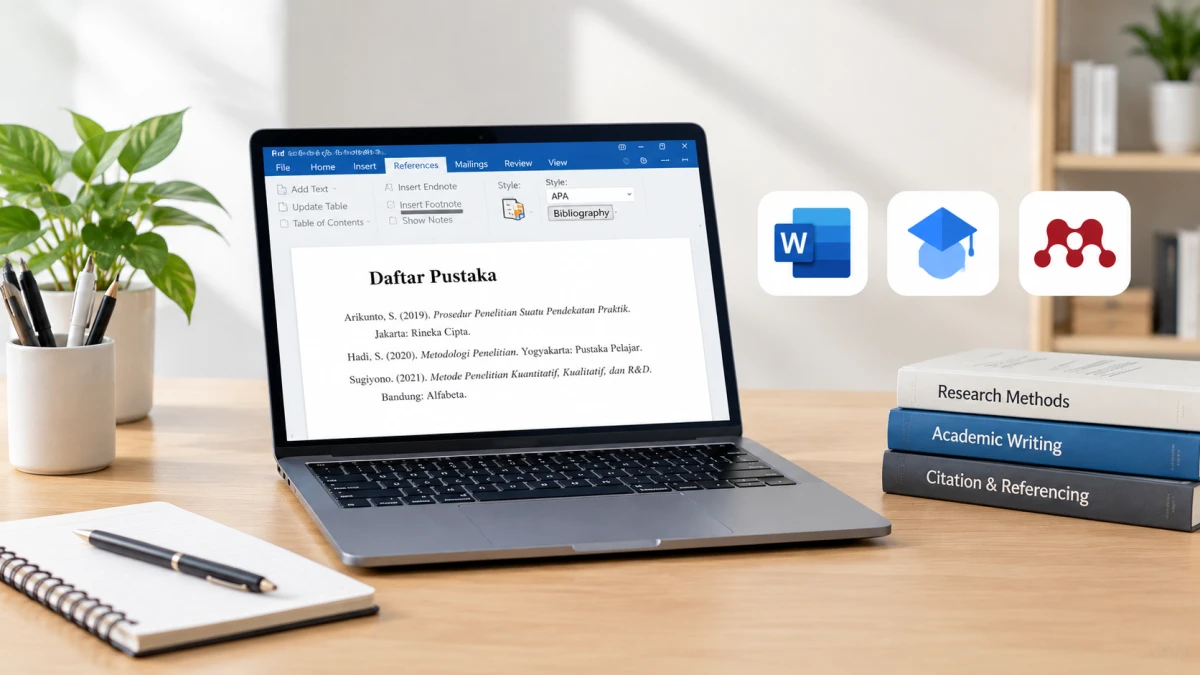
You can create an automatic bibliography with Microsoft Word, Google Scholar, or Mendeley. See the full steps, a comparison of APA, MLA, and CMS styles, and the rules for ordering entries.
An automatic bibliography helps writers compile references without typing each one by hand. It saves time and reduces formatting errors in theses, reports, and books.
You can use any of three platforms: Microsoft Word, Google Scholar, and Mendeley. Each has its own workflow. In Indonesia, most universities use the American Psychological Association (APA) style.
Steps in Microsoft Word and Google Scholar
Microsoft Word has a built-in citation feature, so you don’t need to install any extra software. Here is how to create a bibliography:
- Open your document or the bibliography page in Microsoft Word.
- Click the “References” menu (or “Referensi” in the Indonesian version of Word).
- In the citations group, select “Style,” then choose a style such as APA.
- Under Citations & Bibliography, click “Insert Citation,” then select “Add New Source.”
- In the “Create Source” window, choose the “Type of Source” that matches your reference. The options include Book, Book Section, Journal Article, Article in a Periodical, Conference Proceeding, and Report.
- Fill in the source details, then click “OK.”
Repeat these steps for each source. Word will build the bibliography automatically.
Google Scholar (called Google Cendekia in Indonesian) is a faster option. You search for a source and copy the citation format it already provides:
- Go to scholar.google.com.
- Type keywords in the search box to find an article or book.
- Click the “Cite” icon (labeled “Kutip” in Indonesian) below the title of a search result.
- Choose one format: MLA, APA, Chicago, Harvard, or Vancouver.
- Copy the formatted text and paste it into your document.
This method doesn’t require a PDF file. However, you have to paste each citation into your document one at a time.
Steps for Using Mendeley
Mendeley is a reference manager that connects to Microsoft Word. You need to install a plugin first so the automatic bibliography can appear in your document. Follow these installation steps:
- Download the app from the official website, mendeley.com.
- Open Mendeley, select the “Tools” menu, then click “Install MS Word Plugin.”
- Click “OK” in the confirmation dialog once the process is finished.
Make sure Microsoft Word is closed while you install the plugin. If Word is still open, the installation won’t work properly.
Once the plugin is installed, open Mendeley and Microsoft Word at the same time. Then add your references as follows:
- Right-click a journal article, e-book, or report in PDF format.
- Select “Open With,” then choose “Mendeley.”
- Choose a citation style on the “References” tab in Microsoft Word.
- Click “References,” then select “Insert Bibliography” to generate the bibliography.
Mendeley reads the metadata in a PDF file directly. You don’t need to enter source details manually, as you do in Word.
Style Comparison and Ordering Rules
Mendeley supports many citation styles. The table below uses the same book, Filosofi Teras by Henry Manampiring:
| Citation Style | Example Format |
|---|---|
| APA | Manampiring, Henry. (2018). Filosofi Teras: Filsafat Yunani-Romawi Kuno untuk Mental Tangguh Masa Kini. Jakarta: Kompas Media Nusantara. |
| MLA | Manampiring, Henry. Filosofi Teras: Filsafat Yunani-Romawi Kuno untuk Mental Tangguh Masa Kini. Kompas Media Nusantara, 2018. |
| CMS (Chicago Manual of Style) | Manampiring, Henry. 2018. Filosofi Teras: Filsafat Yunani-Romawi Kuno untuk Mental Tangguh Masa Kini. Jakarta: Kompas Media Nusantara. |
APA is the style used most often in academic writing in Indonesia. If your professor or publisher doesn’t specify another style, choose APA.
Even if you use the automatic features, you should understand the standard structure of a bibliography entry. These are the rules:
- Author name: write the last name first, then the first name.
- Year of publication: write it in parentheses and end with a period.
- Book title: use italics and end with a period.
- Place of publication: write the city name and end with a colon.
- Publisher name: write it after the colon.
- Ordering: arrange all references alphabetically by author or publisher name.
Here is a comparison of the three platforms to help you choose:
| Feature | Microsoft Word | Google Scholar | Mendeley |
|---|---|---|---|
| Software required | Built into Word | Web browser | Desktop app and Word plugin |
| PDF file | Data entered manually | Not needed | Metadata read directly from the PDF |
| Style options | APA and other standard styles | MLA, APA, Chicago, Harvard, Vancouver | APA, MLA, CMS, and custom styles |
| How to use | Create Source menu | Copy and paste | Insert Bibliography button |
Pick the platform that fits your needs, then use an automatic bibliography to keep your references neat and quick to write.